
Flip on Long Edge vs Short Edge: Choose by Page Orientation
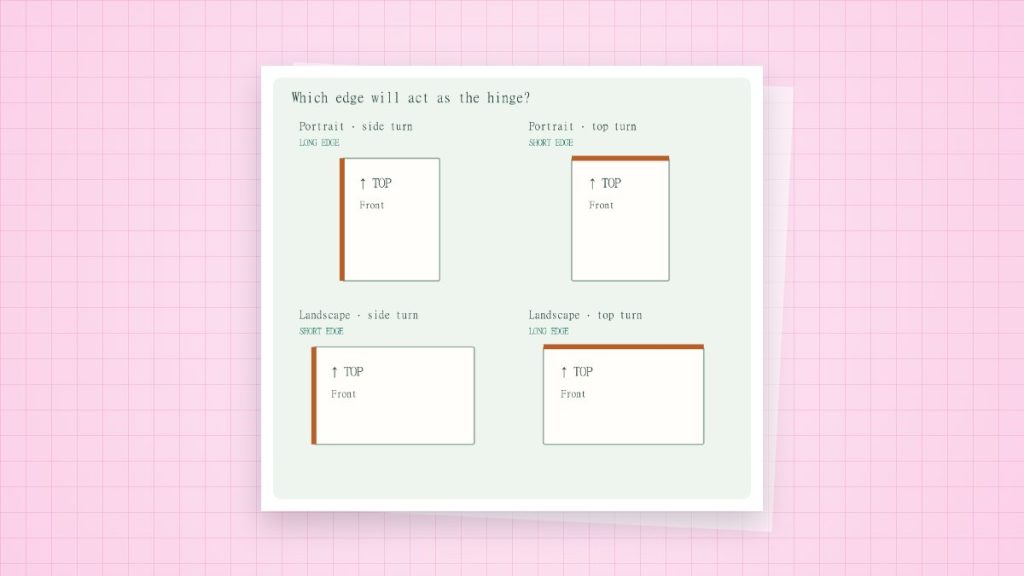
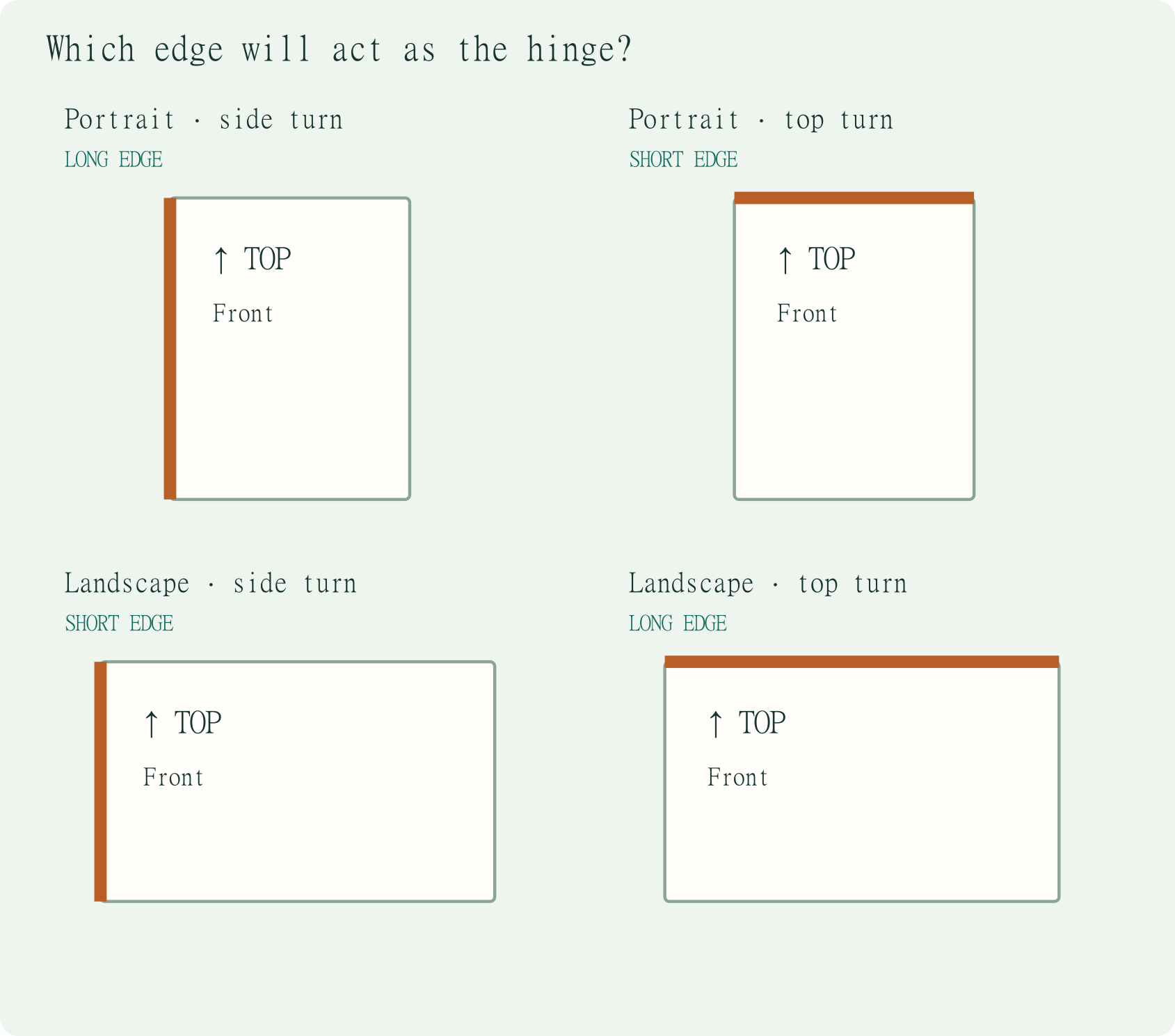
The flip edge is the physical edge around which the sheet turns. Choose it by how you will read the finished pages, then test two numbered pages because application and driver labels can interact with rotation.
| Reading action | Portrait sheet: starting choice | Landscape sheet: starting choice |
|---|---|---|
| Turn left or right like a book | Long edge | Short edge |
| Flip upward like a pad | Short edge | Long edge |
Why the label changes in landscape
On a portrait A4 sheet, the 297 mm side is vertical. Turning around that side is a left-to-right book action. Rotate the sheet to landscape and the vertical side is now 210 mm, the short edge. The desired action stays the same, but the physical edge’s name changes.
A reliable two-page orientation test
- Make two pages with large upright numbers and an arrow marked TOP.
- Select the final paper orientation and print both pages on one sheet. Avoid changing auto-rotation and the flip edge at the same time.
- Hold page 1 upright and turn it exactly as the finished document will be read.
- If page 2 is upside down, change the flip setting and repeat. Keep the sample as a reference for that workflow.
When a booklet behaves differently
A booklet mode may rotate and impose page pairs itself. Let one application control the imposition and follow its duplex instructions. Do not prearrange pages into spreads and then apply a second booklet layout unless the workflow specifically requires it.
If the driver shows icons instead
Use the diagram’s binding edge rather than relying only on wording such as flip on long side. A preview is useful, but the two-page sample verifies the actual feed and rotation. There is no universal manual reload direction across printers.
Sources and method
- Apple: duplex printing: binding-edge settings and printer-dependent options.
- Adobe: booklet printing: booklet-specific page arrangement and duplex workflow.