
How to Print a Poster on Multiple Pages at the Right Size
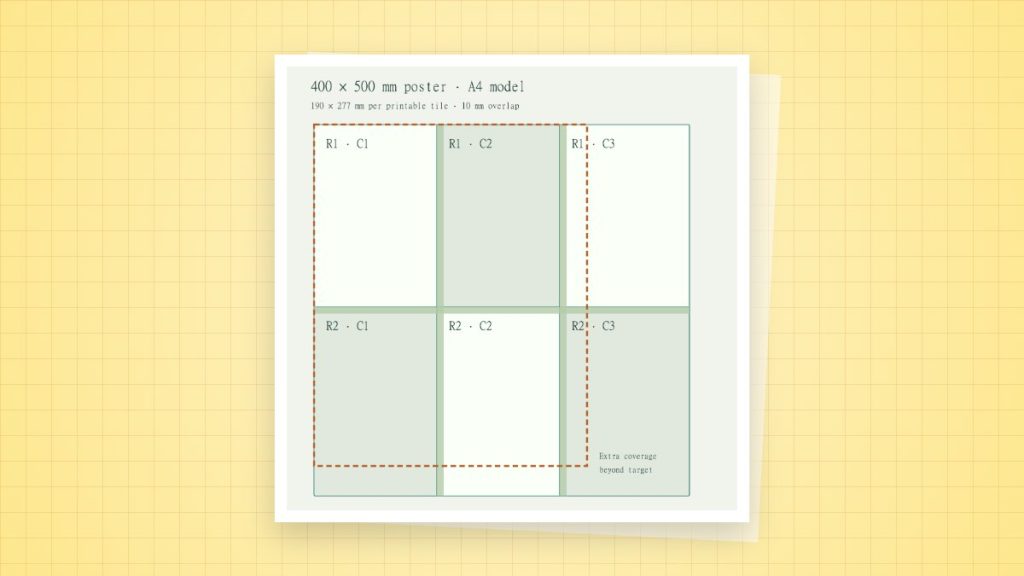
A tiled poster splits one large PDF page across several smaller sheets. Use a PDF viewer’s Poster or tiling mode, add an overlap for alignment and assemble a small sample before printing the full design.
Choose the scale first
- Inspect the PDF’s intended page size. Use 100% tile scale when a pattern or plan must retain its dimensions.
- Select the actual loaded sheet and orientation. Confirm that the viewer shows the expected tile grid.
- Add enough overlap to align repeated content, and enable tile labels or cut marks if the viewer provides them.
- Print two neighbouring tiles first. Measure a known reference, check the overlap and decide which edge you will trim.
- Keep one tile’s overlapping edge intact, trim the mating edge of its neighbour and align the shared marks before taping.
Four A4 sheets do not provide four full printable A4 areas
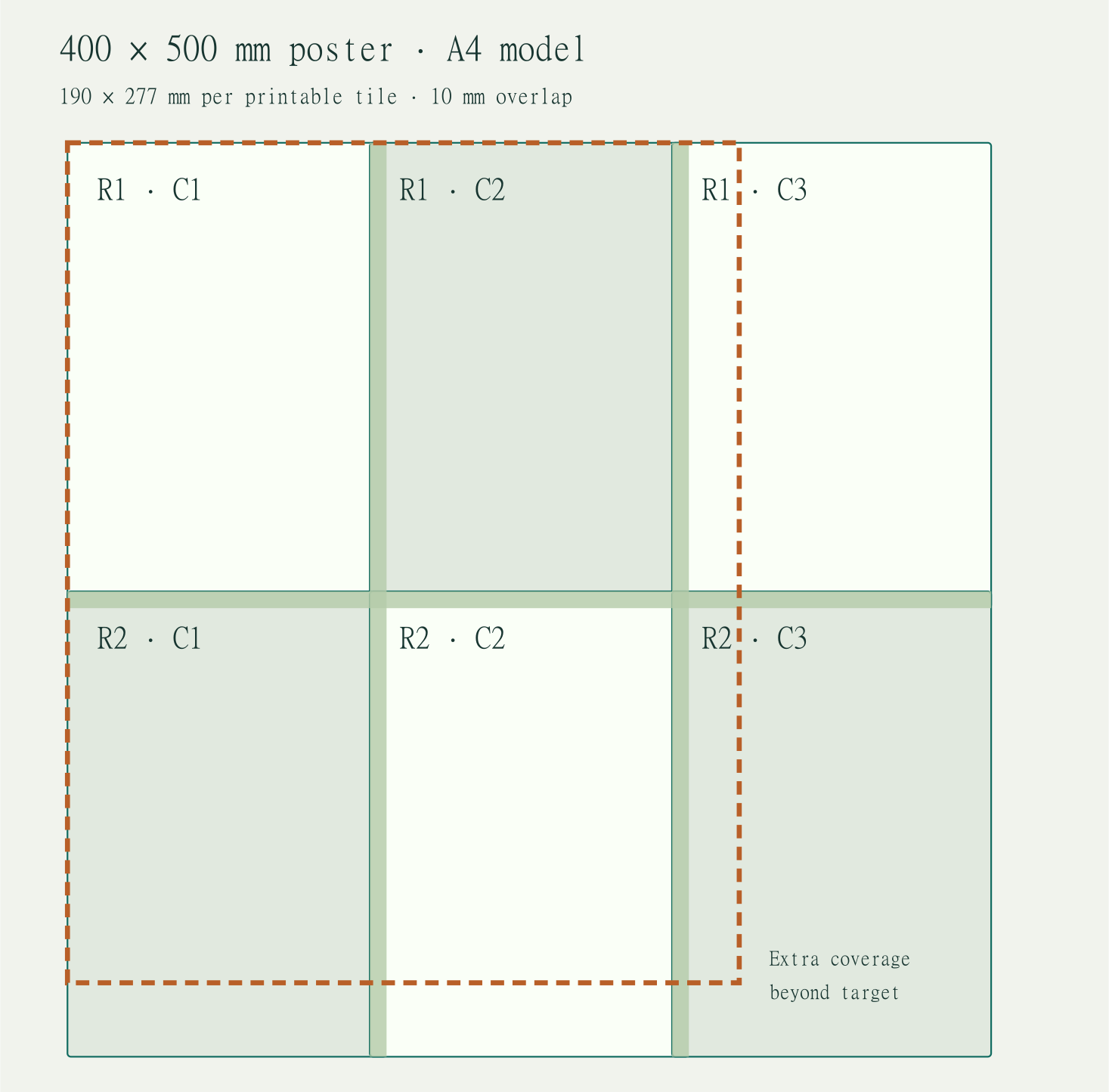
Suppose each sheet has an available content area of 190 × 277 mm after chosen insets, and adjacent tiles overlap by 10 mm. Two columns cover 2 × 190 − 10 = 370 mm. Two rows cover 2 × 277 − 10 = 544 mm. That 370 × 544 mm coverage is smaller than 380 × 554 mm because the overlap repeats content. Your viewer’s actual printable area and tiling algorithm may choose a different tile count.
Before printing a measured pattern
Measure a reference after printing, not just the overall assembled poster. Keep scaling in one place: a 100% tile scale can still be altered by a second driver Fit setting. Do not trim the actual content to a page edge unless the overlap and registration marks show where it belongs.
If the last row is mostly blank
Inspect the source page box for excess whitespace and try the other sheet orientation. Reducing the scale may save paper, but it also changes the finished size. Crop the PDF page only when the cropped region is genuinely unnecessary; do not remove a pattern’s alignment marks.
Sources and method
- Adobe Acrobat: print posters and banners: Poster mode, tile scale, overlap and assembly marks.
- Adobe Acrobat: adjust page size for printing: Actual Size, Fit and the difference between the page and the printable area.