
How to Print Borderless Without Unexpected Cropping
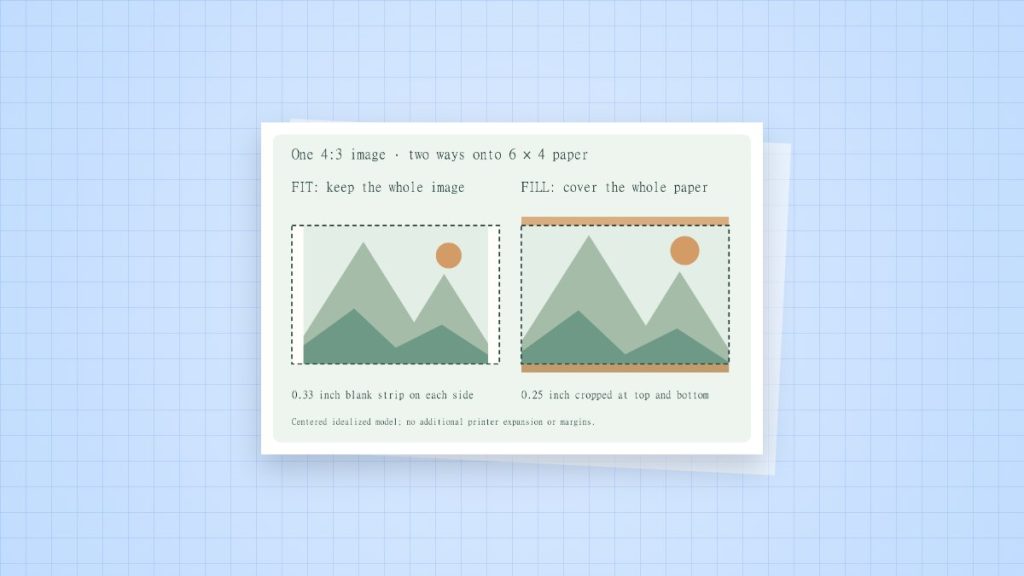
Borderless printing can remove a white paper edge on supported photo media. Many drivers do this by enlarging the image slightly beyond the sheet, which can crop the picture. Use the printer’s actual media and size support list before choosing this mode.
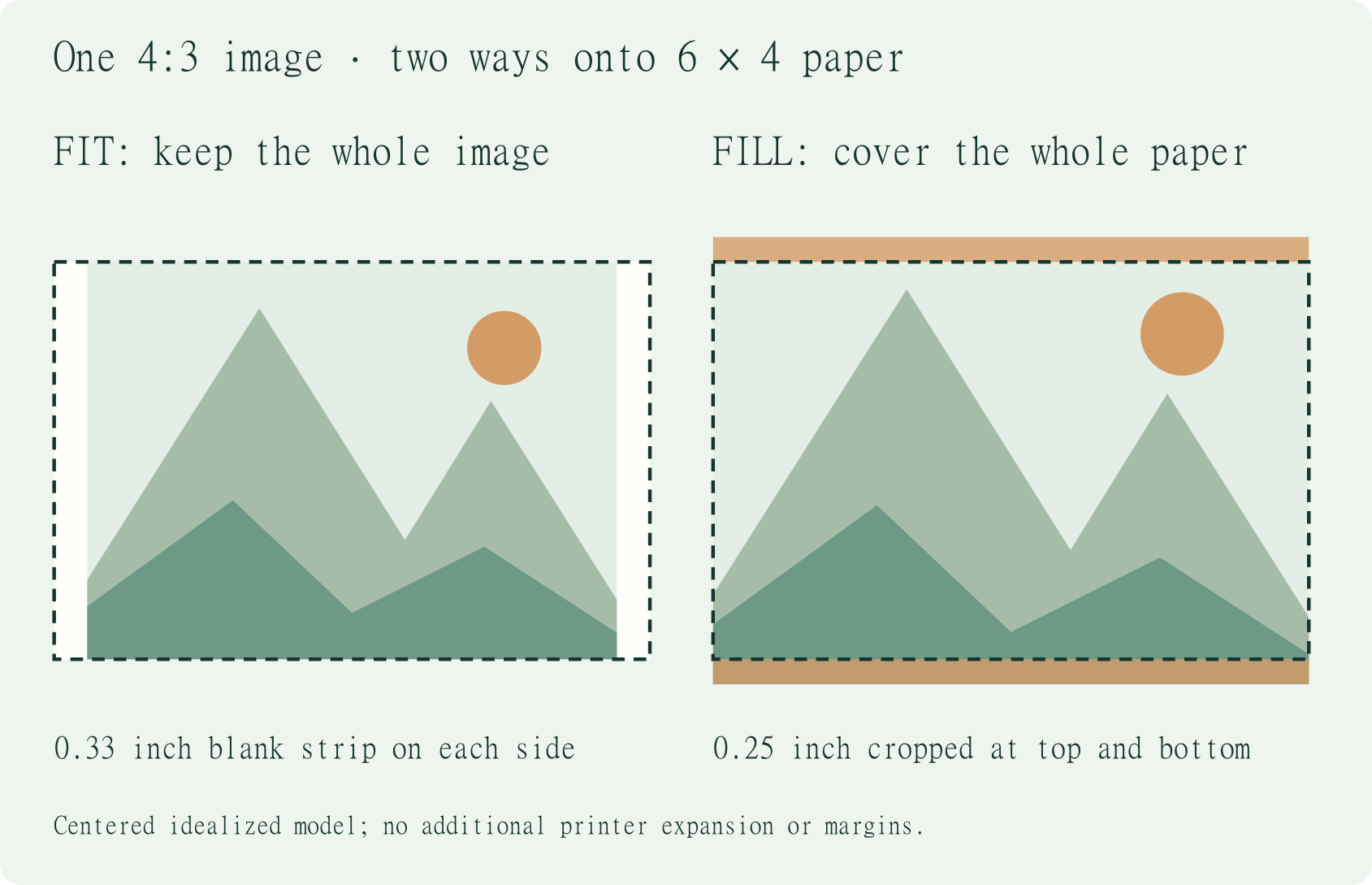
How a small enlargement removes picture edges
Consider a 100 mm-wide design enlarged by an illustrative 3% expansion. It becomes 103 mm wide. If centred on a 100 mm area, about 1.5 mm is lost on each side. This is a mathematical example, not a claimed expansion setting for your printer. The real amount depends on the driver and its controls.
Set up a photo with safe edges
- Choose the exact supported paper size and media type. Borderless support can differ between sizes on the same printer.
- Keep faces, captions and important objects away from the crop boundary.
- Inspect any expansion or amount-of-extension control in the driver. A smaller expansion may leave an edge on some samples.
- Print one photo. Compare all four edges and the crop with the source before making a batch.
When the white edge is preferable
A measured grid, ruler, calibration target or label sheet should retain its scale. Borderless expansion can change that scale even if the source document has exact dimensions. Use Actual Size on matching paper with an inset that the printer can reproduce. For a full-bleed design that needs controlled trim, print on larger supported stock and cut to size.
If borderless is unavailable
Confirm the selected tray, paper type and sheet size in the printer’s own driver. A generic driver or an unsupported media combination may hide the option. Do not assume changing the PDF margins will add hardware support. Consult the manual for the exact model.
Sources and method
- Epson: model paper specifications: an example of model-specific supported media and sizes; it is not a compatibility list for every printer.
- Adobe Acrobat: adjust page size for printing: Actual Size, Fit and the difference between the page and the printable area.