
How to Print a Booklet from a PDF or Word Document
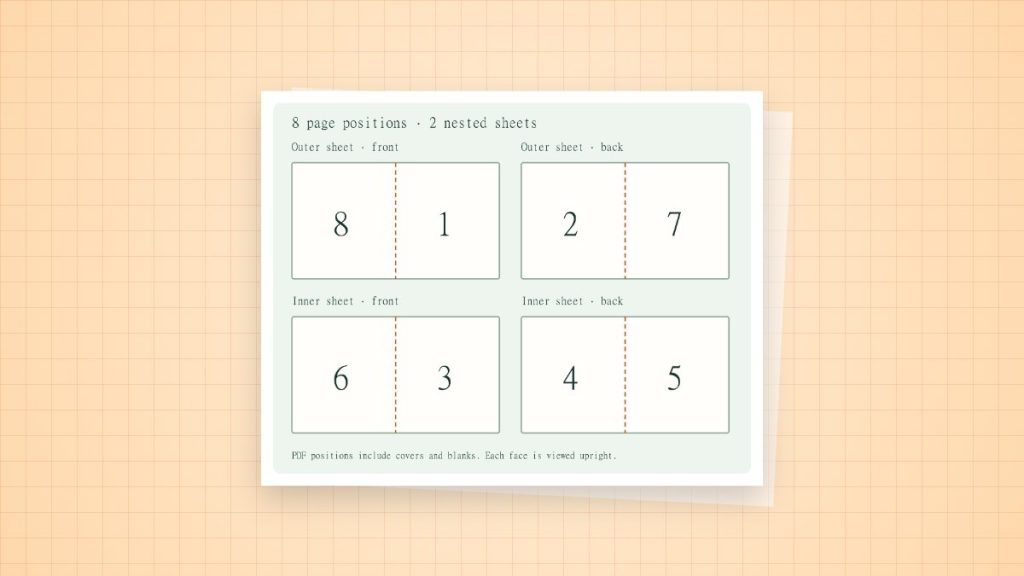
Booklet printing rearranges pages so they read in order after folding. It differs from placing two consecutive pages on each side. For a simple folded, left-bound booklet, the total page count needs to form groups of four, including any deliberate blanks.
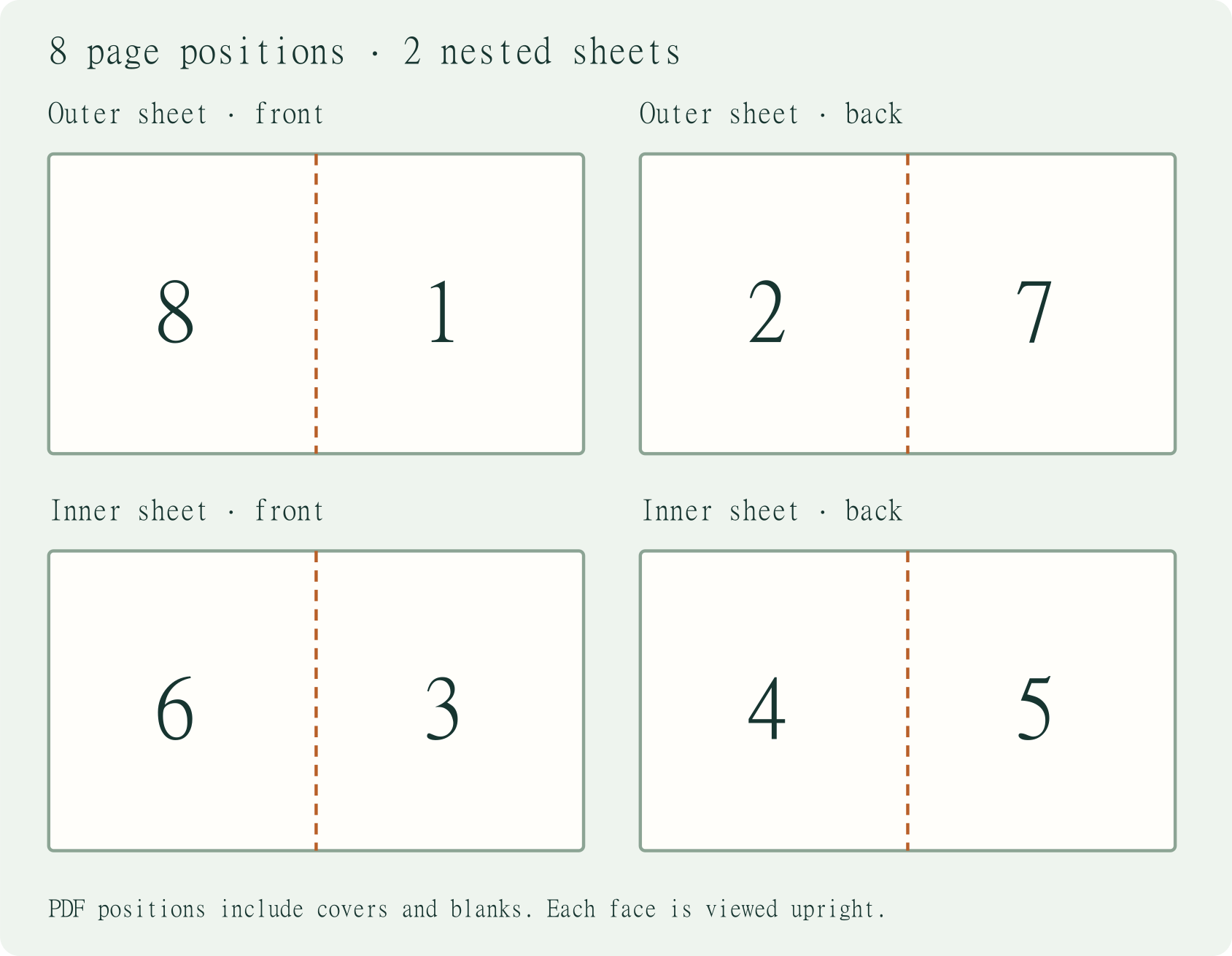
An eight-page booklet: expected pairs
| Sheet | One side | Other side |
|---|---|---|
| Outer sheet | 8 | 1 | 2 | 7 |
| Inner sheet | 6 | 3 | 4 | 5 |
These are the page pairs for a conventional left-bound booklet, viewed as spread layouts. The printer may feed or rotate those sides differently. Use a numbered eight-page dummy to check orientation rather than manually imposing the pairs and also enabling the viewer’s Booklet mode. Double imposition produces the wrong order.
Make a folded test copy
- Prepare normal reading-order pages, including covers and blanks. Export a PDF and count the final pages.
- Open Booklet printing and choose the binding direction. Select the correct paper size.
- For automatic duplex, use the viewer’s booklet controls and confirm the driver’s flip edge using a small test.
- For manual duplex, follow the application’s front-side/back-side instructions. Mark a spare sheet to learn which face and edge enter the printer; feed paths vary.
- Fold and nest the test sheets. Read every page and inspect the inner margins before printing more copies.
Allow for the fold
An A4 parent sheet can produce a roughly A5-sized folded booklet, but the printable area and any trim change the available design space. Keep small text and page numbers away from the fold. Thick or long booklets introduce creep and binding concerns beyond a simple home-printer setup.
If pages are upside down or in the wrong order
First check whether the file was already imposed. Then verify the binding direction, front/back selection and driver flip. Change one setting and repeat the dummy. Do not assume a universal face-up or face-down reload instruction.
Sources and method
- Adobe: print booklets in Acrobat or Reader: booklet setup, binding and manual-duplex options.
- Adobe Acrobat: adjust page size for printing: Actual Size, Fit and the difference between the page and the printable area.